
Progress toward the truth
An investigation clock can show how close the party is to resolving a question. Define the stakes and advance when a discovery matters.
Visible pressure. Meaningful choices.
Show what is closing in before it arrives. Track an investigation, rival plan, patrol, danger or opportunity with clocks you advance as the story changes.

Give approaching events a visible shape
Use clocks to communicate urgency while your table decides what happens.
An investigation clock can show how close the party is to resolving a question. Define the stakes and advance when a discovery matters.
Keep an opposing plan visible in your own preparation. Decide which actions justify an advance and what the rival achieving that goal means.
Track security pressure, approaching threats or a ritual that needs interrupting. A filled clock is a cue for you to resolve the fiction.
Make the remaining chance clear without forcing an outcome. Explain the pressure and let the party choose how to respond.
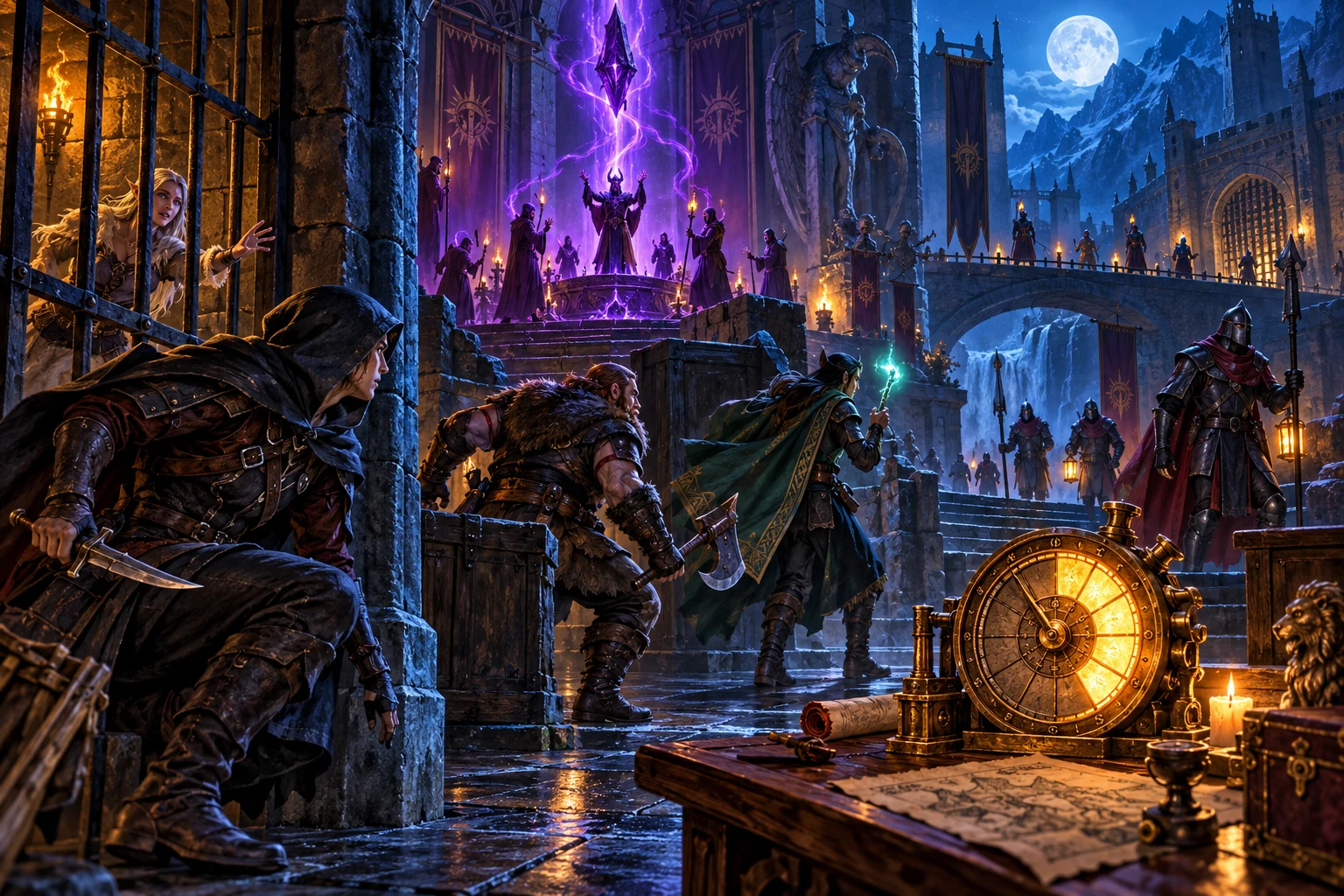
Connect the advance to the scene
Adventurers weigh a rescue, approaching guards and a charged ritual while a segmented dial symbolises mounting pressure.
This illustration represents a scene changing through play. The app displays written clocks and segment progress; it does not generate the scene or run a real-time countdown.
From a stated risk to a visible countdown
Open Time Pressure Clock through Desktop Command Centre on Windows.
Name a custom clock, choose its type and add an optional completion note. Use public wording if you intend to show it to players.
Select 4, 6, 8, 10 or 12 segments. For a ready-made ladder, add a fixed preset with its own name, size and consequences.
Press +1 or +2 when an event warrants it. Use -1 to wind back, or Reset to return visible progress to zero.
Pin current priorities and archive clocks you want out of the way. Review all displayed text before using Show the table.
Clocks with a clear purpose
Keep the rules of advancement in your hands.
Create an investigation, rival, patrol, threat or opportunity clock. Give it a clear name and a completion note suited to your campaign.
Choose 4, 6, 8, 10 or 12 segments for a custom clock. The reference connects those sizes with simple, standard, complex, epic and campaign challenges.
Start from Alarm raised, Ritual completes, Enemy escapes, Faction advances or Structure fails. Each fixed preset includes a consequence for every segment.
Move forward by one or two segments, step back by one, or reset visible progress. Advancing is bounded between zero and the end of the clock.
Read passed and next preset consequences and the current step. A custom clock without a ladder uses its type effect when full.
Pin important clocks to the top, archive them out of the active list and reveal archived clocks when needed. Delete removes a clock from the collection.
Show one clock in a larger local display with its name, description, all preset consequences, segment count and current step. Review the whole display before sharing.
Changes trigger a save attempt on this PC after a short delay. This is local storage, with no cloud library, import or export controls.
Choose your own stakes or a prepared ladder
Presets are fixed starting points; the current app has no clock editor.
Use the five clock types with a chosen segment count and your completion note. Intermediate steps have no authored ladder unless the clock came from a preset.
The six-step alarm moves from investigation to lockdown and alert. The eight-step ritual escalates through gathering power to completion.
The four-step escape tracks distance, obstruction and a fading trail. The six-step faction ladder follows a plan toward its final move.
Six steps take the scene from cracks and dust through lost routes and failing supports to collapse. Decide how each consequence fits the fiction.
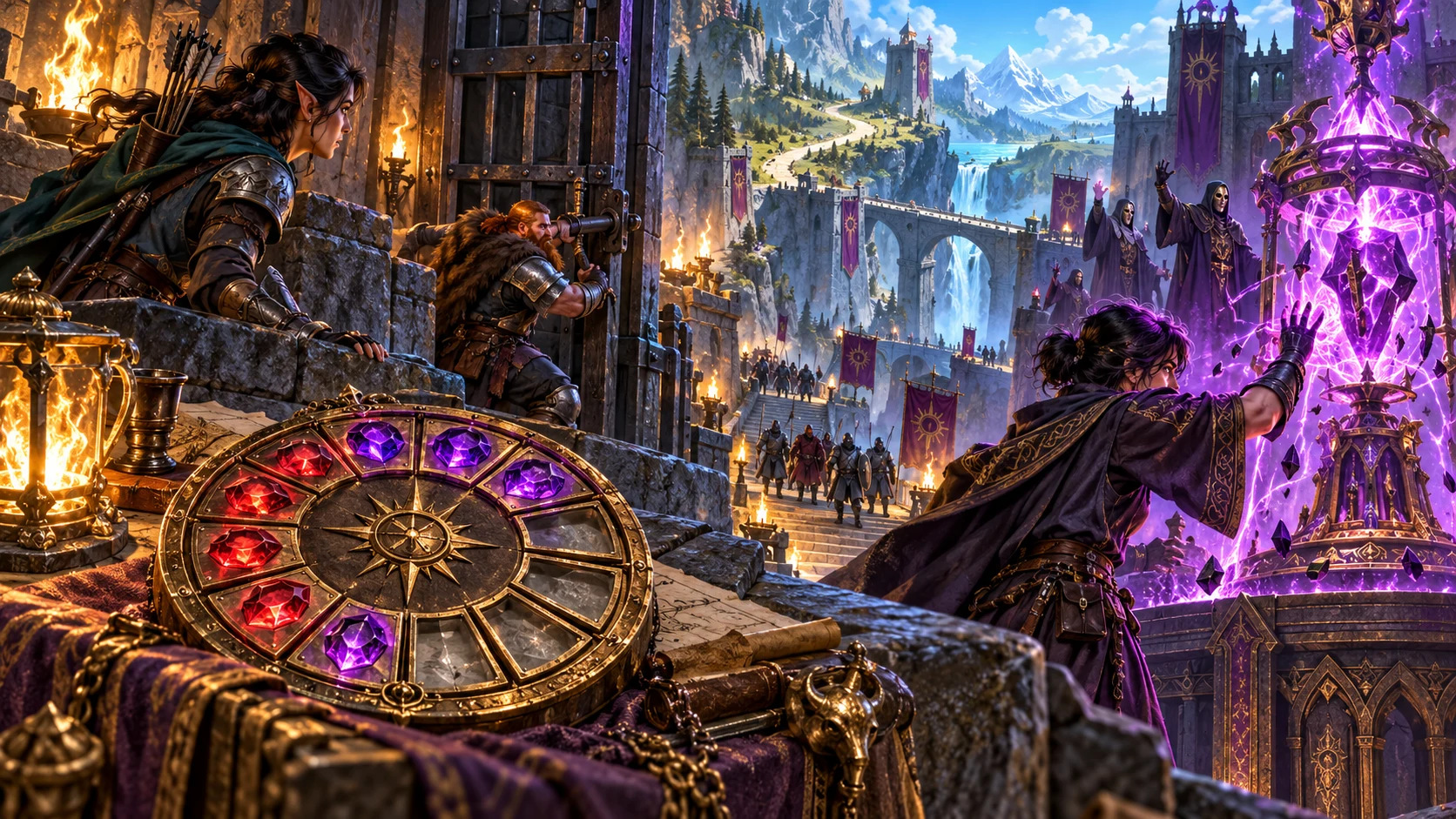
Leave room for the party to act
A partially filled segmented dial accompanies adventurers watching an approaching patrol and acting against a ritual.
The artwork illustrates choices under pressure. Clock consequences remain written prompts for you to interpret, with no automatic encounter or campaign changes.
Manage pressure as the campaign moves
Keep several clocks without turning every deadline into automatic failure.
+1 and +2 advance toward the end; progress is bounded by the segment count. Full clocks show completion and disable forward controls.
-1 reduces progress by one. Reset returns visible progress to zero, without rebuilding the clock or clearing all saved metadata.
Pinning places important clocks before unpinned ones. Keep multiple goals, threats and opportunities on the same board.
Archive hides a clock from the usual list without deleting it. Show archived to bring it back into view, or unarchive it when it matters again.
Clear stakes. Clear sharing boundaries.
Review each clock before advancing it or showing it to the group.
The current app has no automatic real-time timer, background progression or notifications. A reference trigger is guidance, not an automated rule.
The preset supplies every consequence. There is no clock editor or preset renaming control; create a custom clock when you need your own setup.
Show the table includes the name, description and all preset consequences, including future steps. It does not redact GM notes.
A completion effect does not launch combat, create a new clock, reset a patrol or decide whether a character succeeds. Resolve the outcome yourself.
Choose the generator access you need
Current selected-generator prices are charged in US dollars.
US$1.99/month for Time Pressure Clock as an individually selected standalone generator.
US$8.99/month for a pack of five chosen standalone generators. Choose the tools you need through your account.
A free account does not by itself include paid generator access. Open the product through Desktop Command Centre with the required entitlement.
Combat PRO and image products have their own required access. A generator subscription does not include every linked product.
Keep approaching events understandable
Use a small set of clocks with concrete names and consequences.

Clocks are stored locally on this PC. Account access controls launch; it does not provide a cloud clock library or cross-device sync.
Changes trigger a save attempt after about 300 milliseconds. Wait before closing after a change; save failures are not shown in the current interface.
The current app has no import, export or account version-history controls. Delete removes the clock and has no restore control.
Read segment-size examples, suggested advancement triggers, completion effects and guidance for running several clocks together.
Pressure within a wider adventure
Related products retain their own purpose, access and execution boundaries.

Discover and open your supported Windows products through one connected VISINVOKE account.

Explore environments for the patrol routes, rescue locations and encounters your clocks track.
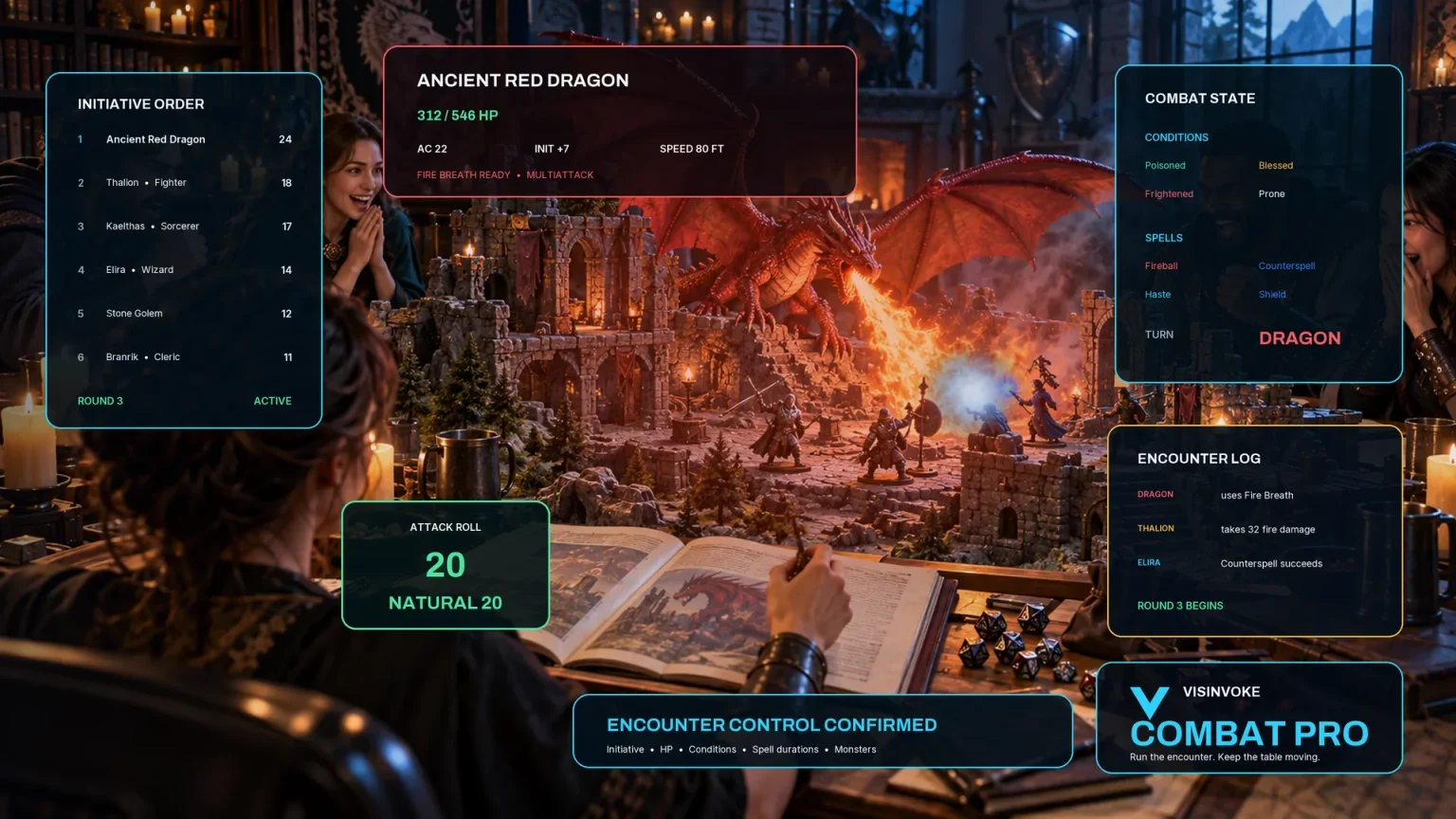
Prepare and run encounters with its separate required access. Clock outcomes can inform your own preparation; no automatic clock handoff starts an encounter.

Create fantasy character, creature, item and location imagery for your tabletop preparation.

Create guided commercial visuals for websites, brochures and other creative projects.

Explore a separate futuristic RPG world with its own characters, rules and progression.
Product artwork illustrates story pressure, not application screens or actual generated image output.
Know the workflow before you start
Understand advancement, local saves and what players can see.
A clock tracks progress toward a stated outcome with filled segments. Create a custom clock with a name, type, size and optional completion note, or add one of five fixed presets. Press +1 or +2 when the fiction gives you a reason, and use -1 to wind it back. The current app advances manually. It has no automatic real-time timer, background progression or notifications, and does not decide whether an action succeeds.
Custom clocks offer Investigation, Rival, Patrol, Threat and Opportunity types with 4, 6, 8, 10 or 12 segments. They carry your completion note or the type's suggested effect, without a consequence ladder for every intermediate step. The five presets include fixed names, sizes, descriptions and a full ladder: Alarm raised has six segments, Ritual completes eight, Enemy escapes four, Faction advances six and Structure fails six. There is no clock editor or preset renaming control in the current app. Create a new custom clock when you need your own setup.
Progress is bounded from zero to the clock's segment count. A full clock is marked complete and its forward controls are disabled; -1 winds it back and allows forward progress again. Reset returns visible progress to zero. It does not rebuild the clock or clear all saved metadata. Completion descriptions and preset consequences are prompts for the game master: they do not automatically launch combat, change campaign records, reset a patrol or create another clock.
The local table display shows the clock's name, its description when present, all preset consequence text including future steps, filled and remaining segments, and the current step. It does not redact GM notes or reveal only the next consequence. Review the entire clock before turning the screen toward players, and use a custom clock with public wording when the preset ladder would reveal a secret. This is an on-screen display, with no remote player-sharing or export control.
The current app keeps the clock collection locally on this PC, rather than in a signed-in cloud library. Changes trigger a save attempt after about 300 milliseconds. Wait before closing after a change; save failures are not shown in the current interface. There is no built-in backup, import or export control, and no account version history or cross-device sync. Pinning changes list order; archiving hides a clock without deleting it. Delete removes it and has no restore control.
Create a VISINVOKE account, choose the required standalone generator access and open Time Pressure Clock through Desktop Command Centre on Windows. Current individual access is US$1.99/month; a pack of five selected generators is US$8.99/month. The current clock app does not send a prepared encounter to Combat PRO and does not start combat. Combat PRO, image products and other linked products retain their own access. Account access controls launch; the clocks themselves use local storage.
Continue in VISINVOKE
Create a free VISINVOKE account and choose the required standalone generator access.
Get Desktop Command Centre from your account installer page. Sign in on Windows, then open Time Pressure Clock.